
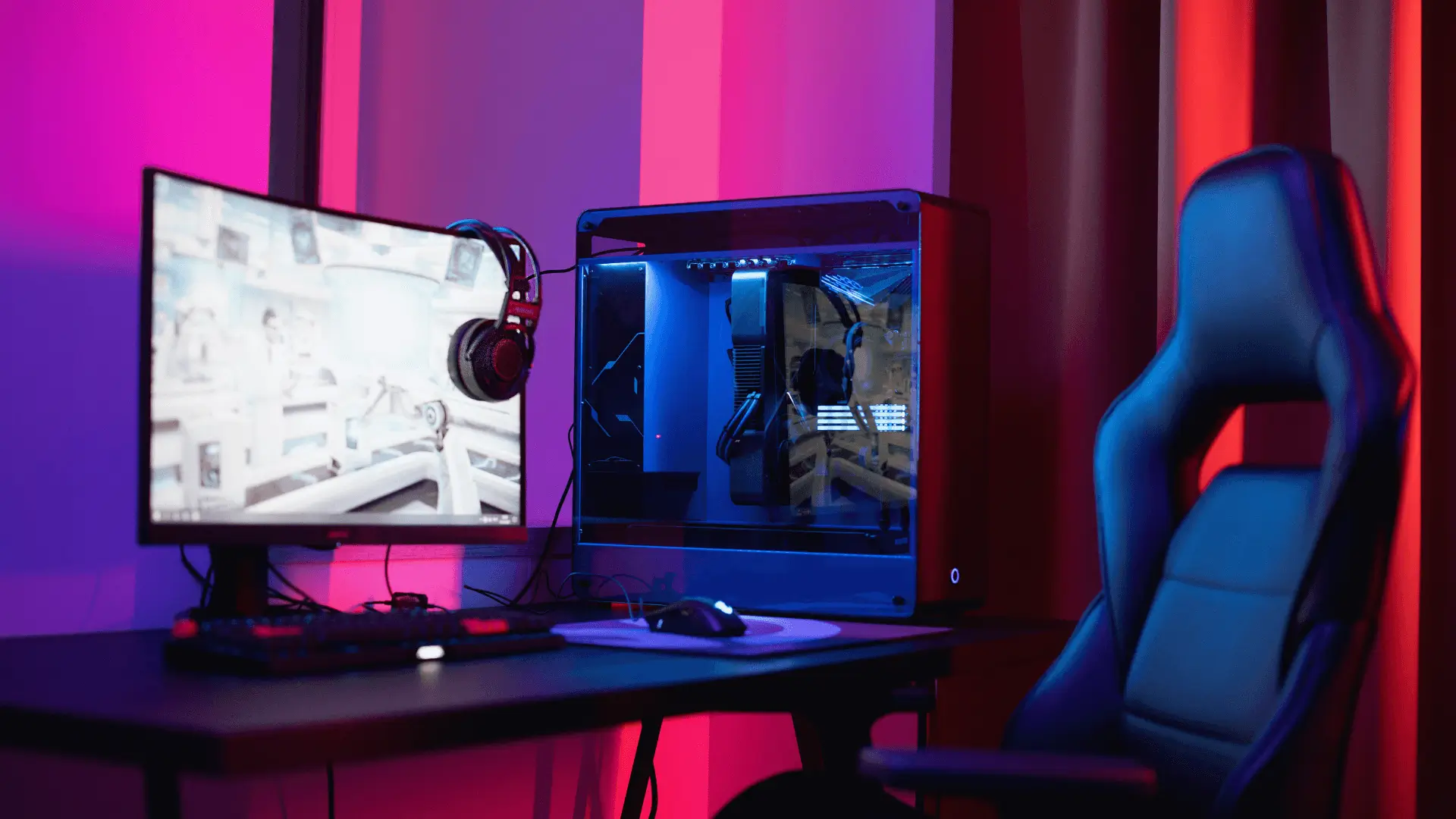
Optimizing your PC for maximum gaming performance involves a mix of hardware tweaks, software settings, and general maintenance. Here’s a comprehensive guide to help you squeeze every bit of power out of your system and enjoy smoother, faster gameplay.
Start by making sure your system meets or exceeds the recommended specifications for the games you want to play. A good GPU (like an NVIDIA RTX or AMD Radeon series), a strong CPU, at least 16GB of RAM, and an SSD are essential for modern gaming. If your hardware is aging, even a modest upgrade — such as moving from a hard drive to an SSD or upgrading your GPU — can lead to a significant boost in performance.
Next, update everything. That means your GPU drivers, chipset drivers, BIOS, and even the game itself. Outdated drivers can severely hamper performance or cause compatibility issues. Both NVIDIA and AMD regularly release driver updates optimized for new game releases, so it’s a good habit to check their software frequently. Also, ensure your Windows OS is up to date, as patches can improve performance and fix bugs that affect gaming.
In the background, your PC might be running several programs that consume memory and processing power. Use the Task Manager to close unnecessary applications before launching a game. Disable startup programs that you don’t need, and consider setting your PC to “High Performance” mode under Power Options. This prevents your CPU and GPU from throttling down to save energy.
Graphics settings are another major factor. While it’s tempting to play everything on ultra settings, tweaking individual options like shadows, anti-aliasing, and draw distance can yield major performance gains with minimal visual sacrifice. Many modern games also have built-in benchmarking tools that help you test different settings and find the right balance between visuals and frame rate.
Overclocking can be a powerful way to push your CPU and GPU beyond their factory limits. However, it should be done carefully and gradually, using reliable software like MSI Afterburner or Intel Extreme Tuning Utility. Proper cooling is essential here — overclocking increases heat output, so invest in a good cooling system and monitor your temperatures regularly to avoid damage.
Speaking of heat, keeping your PC clean and well-ventilated is vital. Dust buildup can lead to thermal throttling, where your components slow down to prevent overheating. Use compressed air to clean your fans and heatsinks every few months, and make sure your case has good airflow.
For online gaming, your internet connection matters too. Use a wired Ethernet connection if possible, as it provides lower latency and a more stable connection than Wi-Fi. If you’re stuck on wireless, try to position your router nearby or invest in a good gaming router or Wi-Fi 6 adapter.
Also, consider disabling unnecessary visual effects in Windows. Fancy animations and transparency settings may look nice, but they consume system resources. You can turn these off in the “Performance Options” menu for a small but noticeable boost in responsiveness.
Finally, use game optimization tools when available. Applications like NVIDIA GeForce Experience or AMD Radeon Software can auto-optimize game settings based on your hardware. Some tools also offer one-click performance tuning, driver updates, and performance overlays for real-time monitoring.
Optimizing your PC for gaming isn’t a one-time task — it’s about regular maintenance and adjusting your system as new games and updates come out. But with a bit of time and attention, you can ensure that your machine runs at peak performance and delivers a smooth, immersive gaming experience every time you play.